
تفصیل
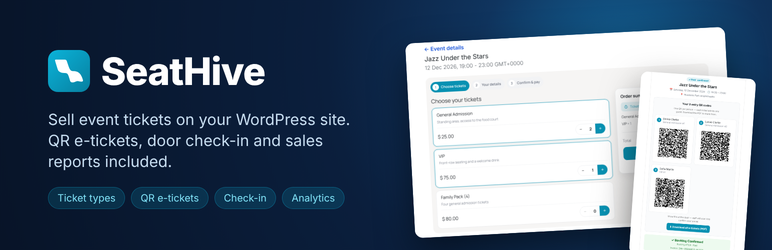
SeatHive turns your WordPress site into a complete ticketing system — free, with no license key and no commission per ticket.
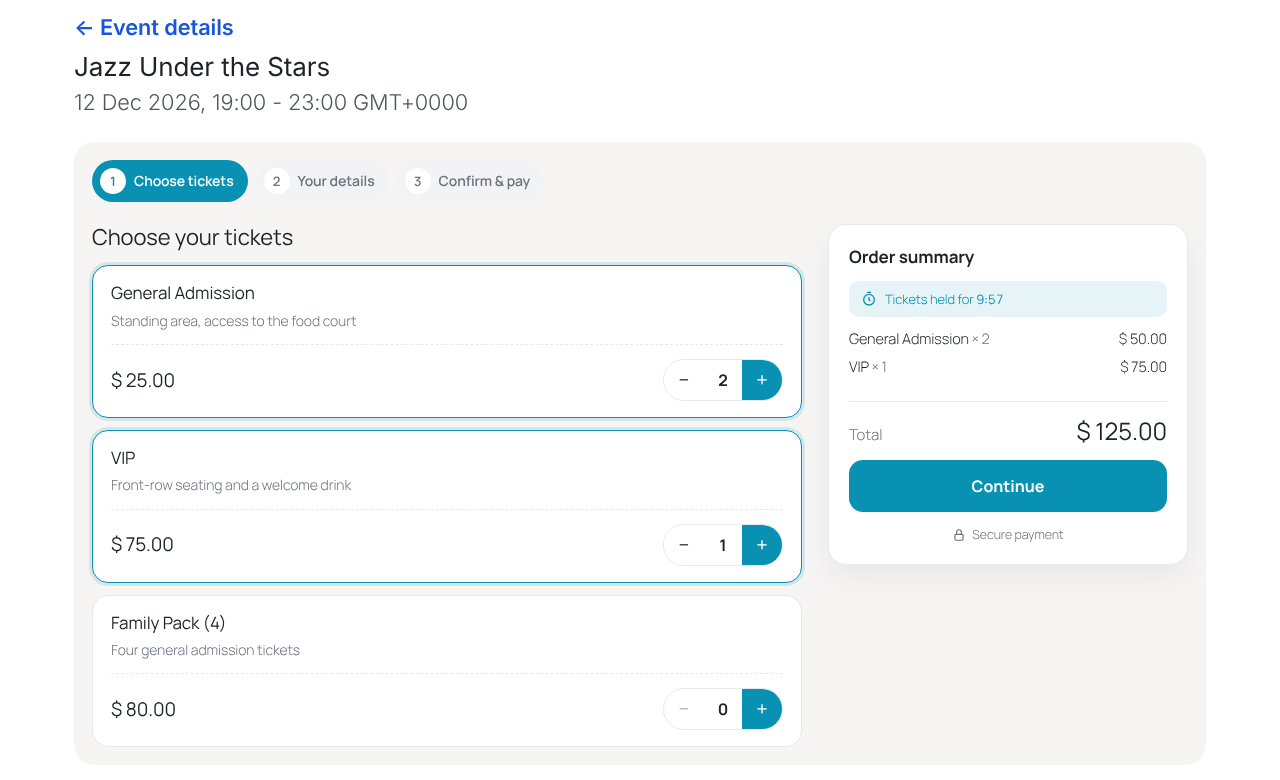
- Ticket types — Regular, VIP, Early bird, Family pack… each with its own price, quota, per-order limit and sales end date.
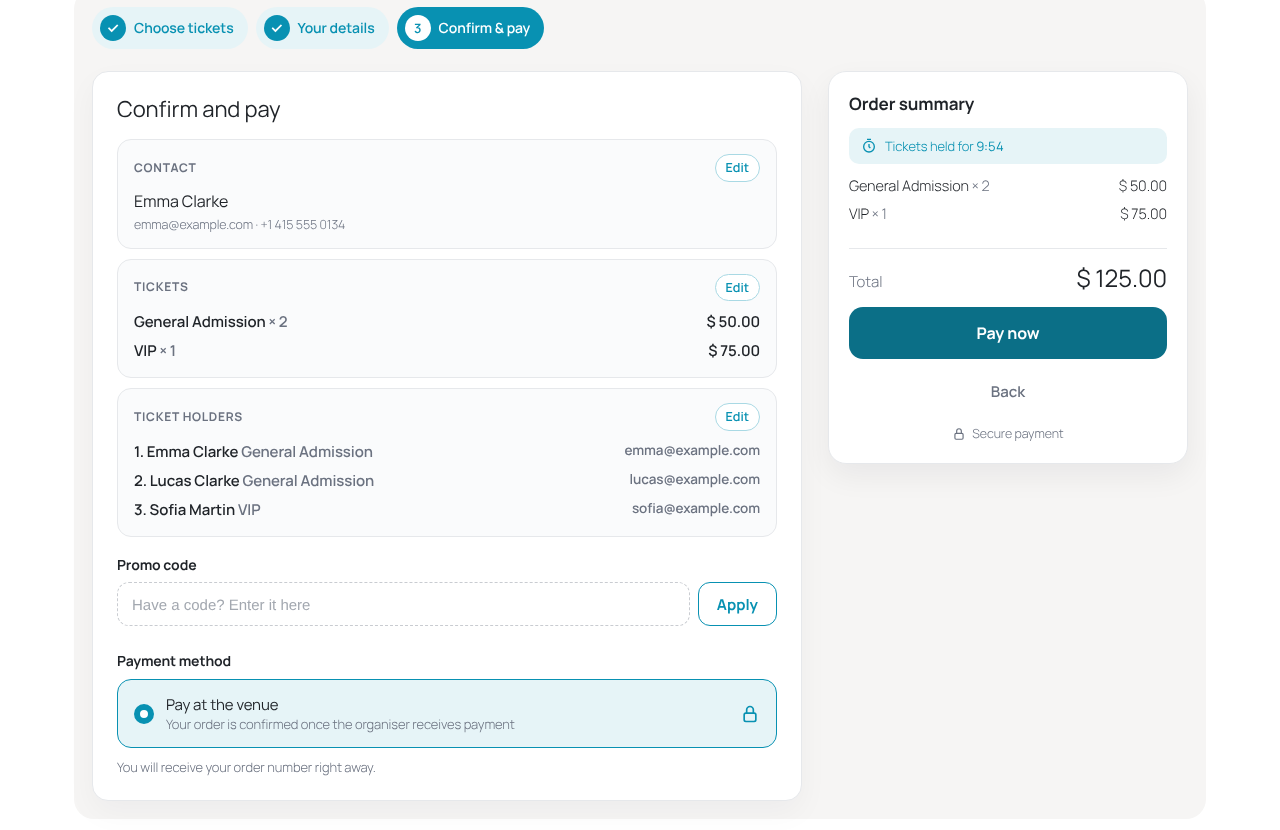
- Fast 3-step checkout — mobile friendly, with promo codes, taxes, fees and a waitlist.
- Payments — DOKU, Xendit (QRIS, virtual accounts, e-wallets), Stripe, PayPal, Mollie and pay at the venue. Money goes straight to your own merchant account.
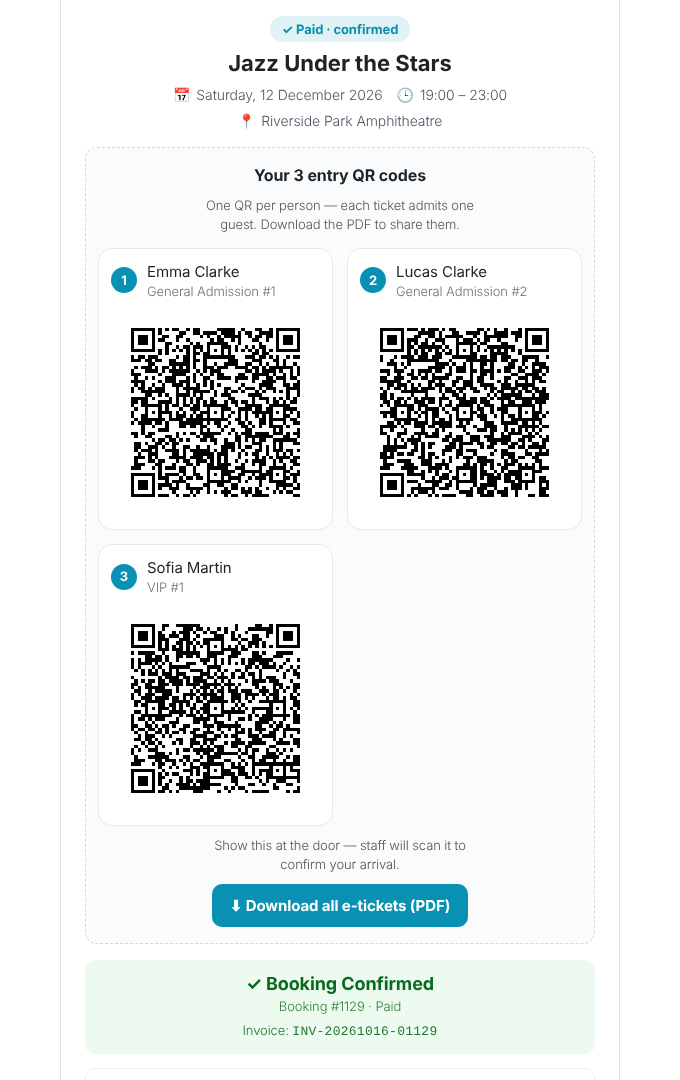
- One QR per guest — every ticket carries the holder’s name; the buyer receives all tickets in one PDF with the event details.
- Complimentary tickets — issue free or pay-at-the-door tickets from the dashboard.
- Check-in from any phone — green / amber / red answers, offline mode, and a live arrivals dashboard.
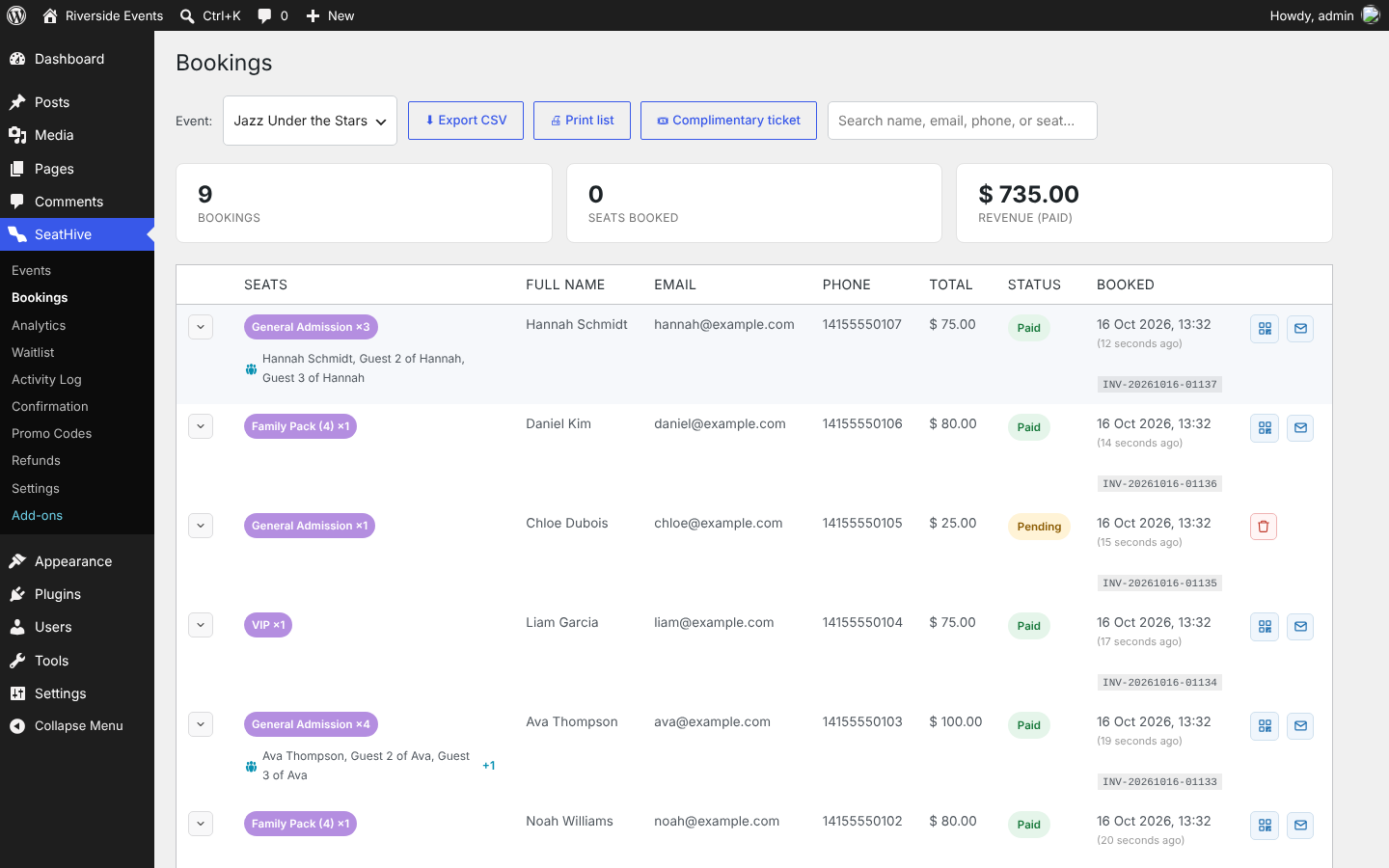
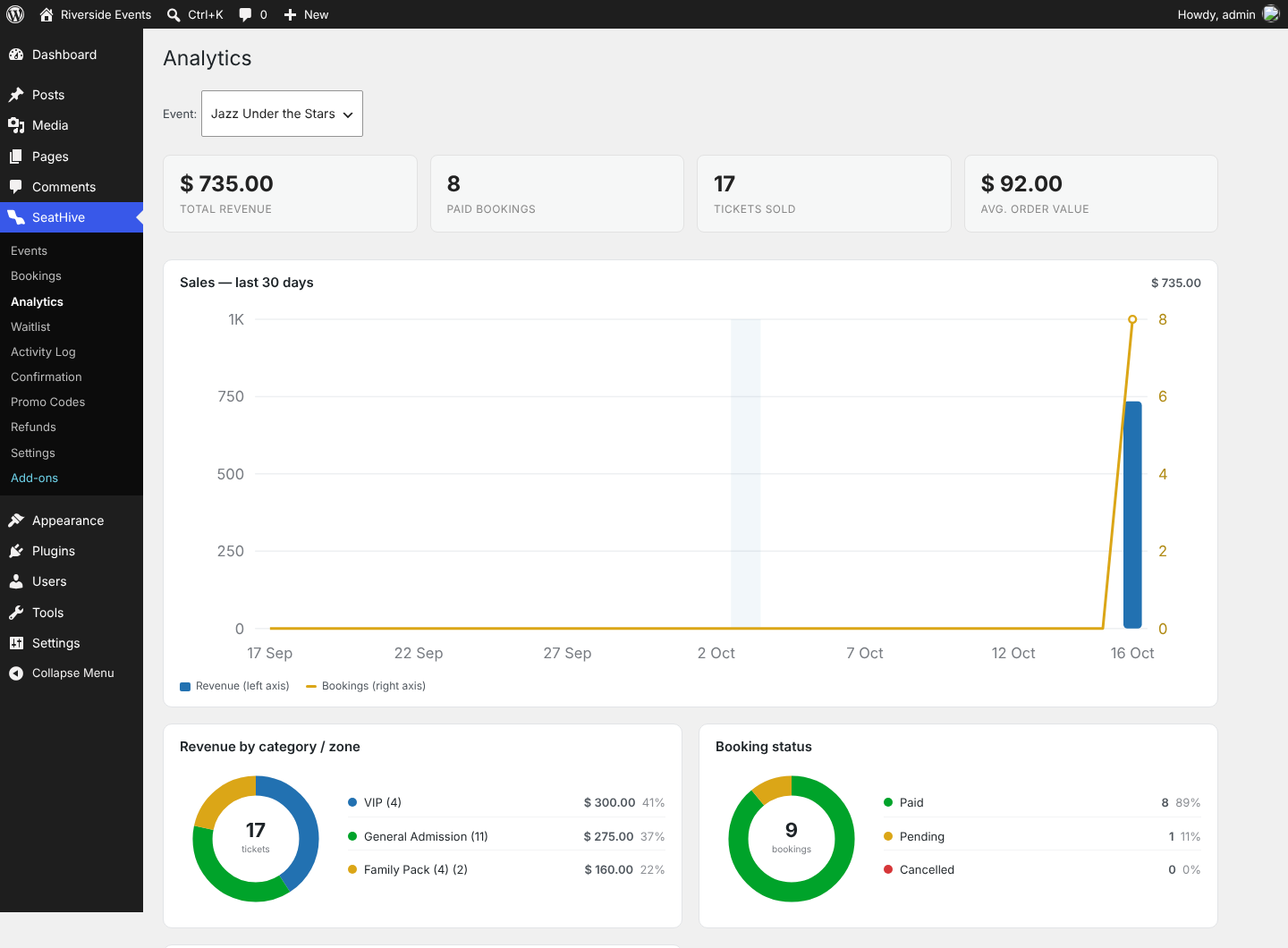
- Reports — bookings, attendee lists, CSV export, analytics and an activity log.
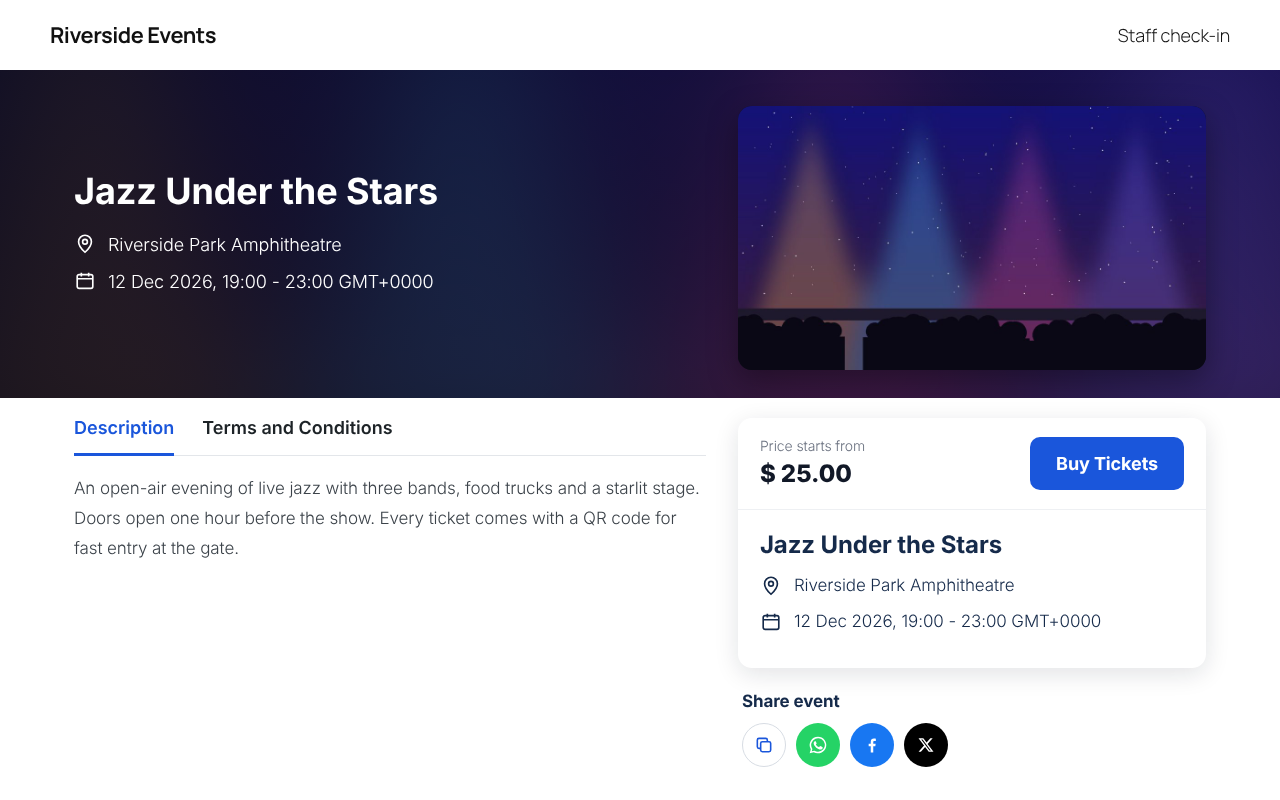
- Multi-date events — sell the same event on several dates (or repeat it daily, weekly, monthly); buyers pick a date, each date has its own stock and check-in list.
- Checkout questions — ask for company, T-shirt size, dietary needs and more; answers appear in Bookings, the CSV export, the receipt and your email.
- My tickets — buyers sign in with their email (no password) and see all their orders, tickets and PDFs in one place.
- Online and hybrid events — a private join link (Zoom, Meet, a stream…) shown only to paid buyers, from the time you choose.
- Apple Wallet and Google Wallet — buyers save each ticket in their phone’s wallet (needs your own developer account).
- Event categories — with icons; filter tabs and category tiles.
- Blocks and Elementor widgets — Event and Events list (grid, carousel, list, featured — with a Query like Elementor’s Posts widget: include / exclude by category, order, and category tabs or icons as the filter), plus the [seatt_events] and [seatt_event_categories] shortcodes.
- Your look — colours, fonts and layout of the event page, checkout, receipt, My tickets page and door screens.
- Translation ready.
Optional: Seating Map add-on
Want buyers to pick their own seats? The separate SeatWP Seating Map add-on from https://seatwp.com/ adds a drag-and-drop Chart Builder, seat categories, ready-made venue layouts and a seat-picking checkout. See SeatHive Add-ons in your dashboard. SeatHive itself never requires it — everything listed above is included for free.
External services
SeatHive does not contact any outside service on a default install. Each service below is used only after you switch it on in SeatHive Settings and enter your own account keys. The data listed is sent only at the moment described.
DOKU (payment gateway)
What it is: DOKU, an Indonesian payment gateway (virtual accounts, QRIS, e-wallets, cards). Used to take online payments when you select DOKU as your gateway.
What is sent and when: when a buyer clicks "Pay”, the booking total, currency, invoice number, the buyer’s name, email and phone number, and your site’s return and notification URLs are sent to api.doku.com (api-sandbox.doku.com in test mode) to create the payment page. If a payment notification is late, the plugin asks DOKU for that order’s payment status (invoice number only). Your DOKU Client ID and signed request headers are sent with each request.
Provided by PT Nusa Satu Inti Artha (DOKU): Terms and conditions · Privacy policy
Xendit (payment gateway)
What it is: Xendit, a payment gateway for Southeast Asia. Used to take online payments when you select Xendit.
What is sent and when: when a buyer clicks "Pay”, the booking total, currency, invoice number, the buyer’s name, email and phone number, and your site’s return URLs are sent to api.xendit.co to create an invoice. Your Xendit secret key authenticates the request.
Provided by Xendit: Terms and conditions · Privacy policy
Stripe (payment gateway)
What it is: Stripe, a card and wallet payment processor. Used to take online payments when you select Stripe.
What is sent and when: when a buyer clicks "Pay”, the booking total, currency, invoice number, ticket description, the buyer’s email and your site’s return URLs are sent to api.stripe.com to create a Checkout Session. Your Stripe secret key authenticates the request.
Provided by Stripe, Inc.: Services agreement · Privacy policy
PayPal (payment gateway)
What it is: PayPal. Used to take online payments when you select PayPal.
What is sent and when: when a buyer clicks "Pay”, your PayPal client ID and secret are exchanged for an access token, then the booking total, charge currency, invoice number and your site’s return URLs are sent to api-m.paypal.com (api-m.sandbox.paypal.com in sandbox mode) to create the order; after the buyer approves, the order ID is sent again to capture the payment.
Provided by PayPal: User agreement · Privacy statement
Mollie (payment gateway)
What it is: Mollie, a European payment provider. Used to take online payments when you select Mollie.
What is sent and when: when a buyer clicks "Pay”, the booking total, charge currency, invoice number, description and your site’s return and webhook URLs are sent to api.mollie.com to create the payment; when Mollie calls the webhook, the plugin reads that payment’s status from api.mollie.com (payment ID only). Your Mollie API key authenticates each request.
Provided by Mollie B.V.: User agreement · Privacy statement
Google Fonts
What it is: Google Fonts, a web font library. Used only when you pick one of the Google Fonts in Settings Display or in the event description editor.
What is sent and when: each time a page using that font is shown, the visitor’s browser loads the font from fonts.googleapis.com / fonts.gstatic.com, which receives the visitor’s IP address and browser details. The default font ("match the visitor’s device”) makes no outside request.
Provided by Google LLC: Terms of service · Privacy policy
Google Wallet
What it is: Google Wallet, Google’s app for passes and tickets. Used only when you switch on "Add to Google Wallet” in Settings Wallet and enter your own issuer ID and service-account key.
What is sent and when: nothing is sent by your server. When a buyer clicks "Add to Google Wallet” on their receipt, their browser opens pay.google.com with a ticket signed by your key: event name, date, venue, your organiser name, the ticket holder’s name, ticket type, invoice number and the ticket’s QR code link. Google then keeps that ticket in the buyer’s Google account.
Provided by Google LLC: Google Wallet API terms of service · Privacy policy
Apple Wallet
Apple Wallet passes (Settings Wallet) are built and signed on your own server with your Pass Type ID certificate and downloaded straight from your site by the buyer. Nothing is sent to Apple.
Your own email (SMTP) server
If you turn on Settings Email Use SMTP, booking emails (buyer name, email address, booking and ticket details) are sent through the mail server you entered, using the login you provided. Nothing is sent to us.
Links only (no data is sent until the visitor clicks)
The share buttons on the event page open WhatsApp (wa.me), Facebook and X with the event link, and "Add to Google Calendar” opens calendar.google.com with the event title, time and venue. The Add-ons screen links to https://seatwp.com/ , including the free SeatHive Accounts add-on download. These are ordinary links: nothing is sent unless the visitor clicks them.
اسکرین شاٹس
بلاکس
یہ پلگ ان 4 بلاکس مہیا کرتی ہے۔
- SeatHive Event
- SeatHive Events list
- SeatHive Event categories
- SeatHive My tickets
انسٹالیشن
- Plugins Add New search for "SeatHive” Install Now Activate.
- Follow the short setup (currency, payment, first event) or go to SeatHive Events Add New.
- Add your ticket types, set your payment gateway in SeatHive Settings and publish.
Coming from the older SeatWP plugin? Deactivate it first, then activate SeatHive: your events, bookings, tickets and settings move over automatically and old ticket links and QR codes keep working.
عمومی سوالات
-
Do I need a license key?
-
No. SeatHive works fully without one. Only the optional Seating Map add-on is paid.
-
Is there a commission per ticket?
-
No. You only pay your payment gateway’s own transaction fee.
-
Does check-in work without internet?
-
Yes. Prepare the scanner while online; it keeps scanning offline and syncs when the connection is back.
-
How do I add seat maps?
-
Install the SeatWP Seating Map add-on (SeatHive Add-ons). If its plan ends, seat maps you already published keep selling; only the Chart Builder is hidden until you renew.
جائزے
There are no reviews for this plugin.
شراکت دار اور ڈیویلپرز
“SeatHive Event Ticketing” اوپن سورس سافٹ ویئر ہے۔ مندرجہ ذیل لوگوں نے اس پلگ ان میں حصہ لیا:
شراکت دار
“SeatHive Event Ticketing” کا اپنی زبان میں ترجمہ کریں۔
ڈویلپمینٹ میں دلچسپی ہے؟
کوڈ براؤز کریں، ایس این وی ریپوزیٹری کو چیک کریں یا ڈویلپمینٹ لاگ کو سبسکرائب کریں بذریعہ آر ایس ایس۔
چینج لاگ
3.6.3
- Events list widget: the Query section now works like Elementor Pro’s Posts widget — Source (Events / Manual selection), Include by Term (event categories), Exclude by Term or Manual selection, Date, Order by and Order (ASC / DESC). Widgets you already placed keep showing the same events.
- Events list: new Filter style "Category icons” — your category icons and colours as the filter, with an "All” icon (also for blocks: filter_style=”tiles” in [seatt_events]).
- Events list: exclude categories (exclude_cats) and an Order option in the block and shortcode too.
- The Events list uses the SeatHive logo in the Elementor panel and the block inserter.
- The separate Event categories and My tickets widgets / blocks are no longer offered (category icons are now part of the Events list; the My tickets page is created automatically). Pages that already use them keep working.
3.6.2
- Events list: event images always fill the card, also with Elementor and themes that set img { height: auto } (wide or tall images are cropped to the card ratio).
- Events list: cards on one row line up — category, date and price sit at the same height in every card, also for free events and events without a category.
- Events list: with Dates set to All, past events move to the end and are marked "Ended”.
- Events list: fills its Elementor container (also in a row container); checked on desktop, tablet and phone.
- Elementor: the Dates setting explains that Upcoming hides past events.
3.6.1
- Elementor: the SeatHive widgets now look the same in the Elementor editor as on the published page (their styles load in the editor preview too). The SeatHive Event widget shows the event card in the editor.
3.6.0
- Event categories: SeatHive Categories, each with its own icon and colour. Assign them in the event editor.
- Events list rebuilt (shortcode [seatt_events], block and Elementor widget), modelled on Elementor’s Posts widget: Grid, Carousel (with arrows), List with date badges and Featured + list skins; query by all events, categories or hand-picked events, upcoming / past, online / at a venue, order by date, newest, price, best selling or title; header with title, icon and "See all” link; category tabs; Load more or numbered pages; responsive columns and image ratio.
- Event cards: location, title, category, date, "Starts from” price with the early-bird discount, and automatic badges — Promo, Free, Selling fast, Almost sold out, Sold out, Online.
- Elementor: full Style tab for the Events list (header, card, shadow and hover lift, text, price, badges, tabs and pagination) and a new "SeatHive Event categories” widget (also a block and [seatt_event_categories]); a category tile can open an Events list on that category (?seatt_cat=slug).
3.5.0
- New free add-on: SeatHive Accounts (SeatHive Add-ons). It turns the My tickets page into a full buyer account — sign-up and log-in, order tracking from payment to check-in, tickets, refunds, profile and help — with Elementor widgets and blocks.
- Settings: the Wallet tab now sits next to Payment Setting.
- Menu: Activity Log is now just above Refunds.
- The SeatHive Event block and Elementor widget show the SeatWP logo.
- For developers: filter seatt_my_tickets_html and action seatt_my_tickets_verified on the My tickets page.
3.4.0
- Multi-date events: add more dates to an event (one by one, or repeat daily / weekly / every 2 weeks / monthly). Each date has its own tickets or seats, sales and check-in list; the event page shows a date picker. Settings, ticket types and the seat map are copied to every date when you save; dates that already sold tickets are never deleted.
- Checkout questions: add up to 12 questions per event (short or long text, dropdown, checkbox, number, date), optional or required. Answers show in Bookings, the CSV export (one column per question), the receipt and the new-order email. Works in the tickets checkout and the Seating Map checkout.
- My tickets page for buyers: sign in with an email link (no password) and see all orders, upcoming and past, with tickets, PDFs and join links. The page is created automatically; its colours are set in Settings Display My tickets page.
- Online and hybrid events: add a join link and access note. Only paid buyers see it — on the receipt, in the confirmation email, the reminder and My tickets — right after paying or from 1–48 hours before the start.
- Apple Wallet and Google Wallet: new Settings Wallet tab. Once set up, every ticket on the receipt gets "Add to Apple Wallet” / "Add to Google Wallet” with the same QR code the door scanner reads. Off by default.
- Blocks for the block editor (SeatHive Event, SeatHive Events list, SeatHive My tickets) and the same three Elementor widgets. New [seatt_events] shortcode for a grid of upcoming events.
- Receipt: ticket holders of quantity tickets are numbered 1, 2, 3 across the order.
- Settings Display previews show sample prices in your store currency.
- Check-in portal: a staff account with one assigned event gets it pre-selected.
3.3.1
- One order per checkout: a double click, a retried request or a second tab no longer creates a second order. The same order sent again returns the order that already exists (and the same payment page); a seat that is already in an open order of the buyer cannot go into another one.
- Settings Display "Seat map checkout”: your own colours for the checkout buttons, text, backgrounds and the Back button, corners, and the timer / line under the buttons on or off.
- The line under the checkout buttons now says "Secure payment” and can be changed (seat map and tickets-only checkout).
- The phone field shows "Phone” instead of a sample number.
- Checkout buttons keep their look on themes that style every button (e.g. Hello Elementor), and hidden buttons stay hidden.
3.3.0
- New per-event "Checkout timer” setting (Event settings): choose how many minutes seats or tickets stay reserved during checkout (2–60, default 12).
- Add-ons page: new Seating Map plans (3 months, 1 year, Agency for 5 sites, Lifetime).
- When the checkout timer runs out, the buyer is sent back to the event page with a short note that the seats or tickets were released.
3.2.0
- Removed WhatsApp reminders (Fonnte and the add-on relay). Event reminders are sent by email; the old WhatsApp settings are cleaned up automatically.
3.1.0
- New name: SeatHive Event Ticketing (plugin slug: seathive). Same data, settings and links.
- If the earlier "Seat Ticketing” copy is still active, SeatHive waits and shows a notice instead of clashing with it.
- Admin screens and script handles now use the plugin’s own "seatt-” prefix (old admin links redirect automatically).
- Readme: each external service is documented with what is sent, when, and links to its terms and privacy policy.
3.0.1
- Event page tabs: inactive tabs are now dark (themes such as Hello Elementor no longer turn them pink).
- New settings under Display Event details page: "Tab text” and "Tab hover colour”.
- Event pages (/events/…) no longer 404 right after installing or updating — permalinks are rebuilt automatically.
3.0.0
- New name: SeatHive (formerly SeatWP). Free, no license key, nothing locked.
- Seat maps and the Chart Builder moved to the optional SeatWP Seating Map add-on.
- New Add-ons screen.
- Data from the older plugin is moved over automatically; old links and QR codes keep working.
- All scripts and styles now load through the WordPress enqueue system.